CONTROLLI AUDIO/VIDEO / AUDIO/VIDEO CONTROLS

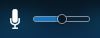
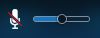
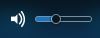
Questa è la barra principale, da qui potete controllare microfono, videocamera e volumi.
This is the main toolbar, from here you can control microphone, video camera and volumes.
          Microfono e volume microfono: Click sull'icona del microfono per escludere il vodtro audio dalla riunione.
Microphone and microphone volume: Click on the microphone icon to exclude your vodtro audio from the meeting.
          Audio e volume audio: Click sull'icona per disabilitare l'audio della riunione.
Audio and audio volume: Click on the icon to disable the meeting audio.
          Webcam: Click per escludere la propria immagine dalla riunione.
Webcam: Click to exclude your image from the meeting.
      Lucchetto: Il microfono o la webcam sono escluse dal moderatore della riunione.
Padlock: The microphone or webcam is excluded from the meeting moderator.

CONTROLLI RIUNIONE / REUNION CONTROLS

Questa è la barra da dove è possibile modificare e/o gestire la riunione da semplice partecipante
This is the toolbar where you can edit and / or manage the meeting as a simple participant.
  -->
Se il microfono è spento dal moderatore, potete richiedere la parola cliccando quest'icona.
If the microphone is turned off by the moderator, you can request "speech" by clicking on this icon.

Cliccando qui potete cambiare la disposizione delle finestre.
By clicking here you can change the arrangement of the window.

Cliccando qui potrete iniziare a presentare, si raccomanda di condividere il Desktop.
By clicking here you can start presenting, it is recommended to share the Desktop.

Riservato ai moderatori della riunione.
Reserved for meeting moderators.

Ignoratelo.
Ignore it.

Queste due icone vi permettono di gestire il PIP (la vostra immagine in un angolo) e il layout di visualizzazione dei partecipanti in video.
These two icons allow you to manage the PIP (your image in a corner) and the display layout of the participants on video.

LISTA PARTECIPANTI / PARTICIPANTS LIST

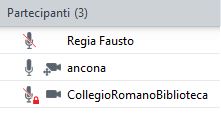
Da qui potete avere informazioni sui partecipanti alla riunione:
  • Tra parentesi il numero totale di partecipanti (3)
  • "Regia Fausto" ha il microfono spento da se stesso;
  • "Regia Fausto" ha la webcam spenta (nessuna icona webcam);
  • "ancona" ha il microfono acceso e la webcam accesa;
  • "CollegioRomanoBiblioteca" ha il microfono spento dal moderatore e la webcam accesa.

From here you can get information on meeting participants:
  • In brackets the total number of participants (3)
  • "Regia Fausto" has the microphone turned off by itself;
  • "Regia Fausto" has the webcam turned off (no webcam icon);
  • "ancona" has the microphone on and the webcam on;
  • "CollegioRomanoBiblioteca" has the microphone turned off by the moderator and the webcam turned on.

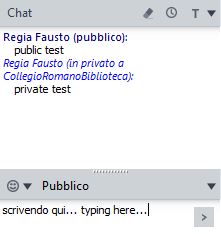
PANNELLO CHAT / CHAT PANEL

Qui potete scrivere agli altri partecipanti che usano Avaya Scopia Desktop.
Here you can write to other participants who use Avaya Scopia Desktop.

Selezionate qui il partecipante a cui inviare un messaggio privato, o selezionate "Pubblico" per inviarlo a tutti.
Select here the participant to send a private message, or select "Public" to send it to everyone.
Cliccate qui (o tasto "Invio") per inviare il messaggio.
Click here (or "Enter" key) to send the message.


for any advice on changes to the English translation, please contact us at the same email address with the connection parameters. Thank you